Setup and Initial Configurations
Setup Steps
1. Create an Application
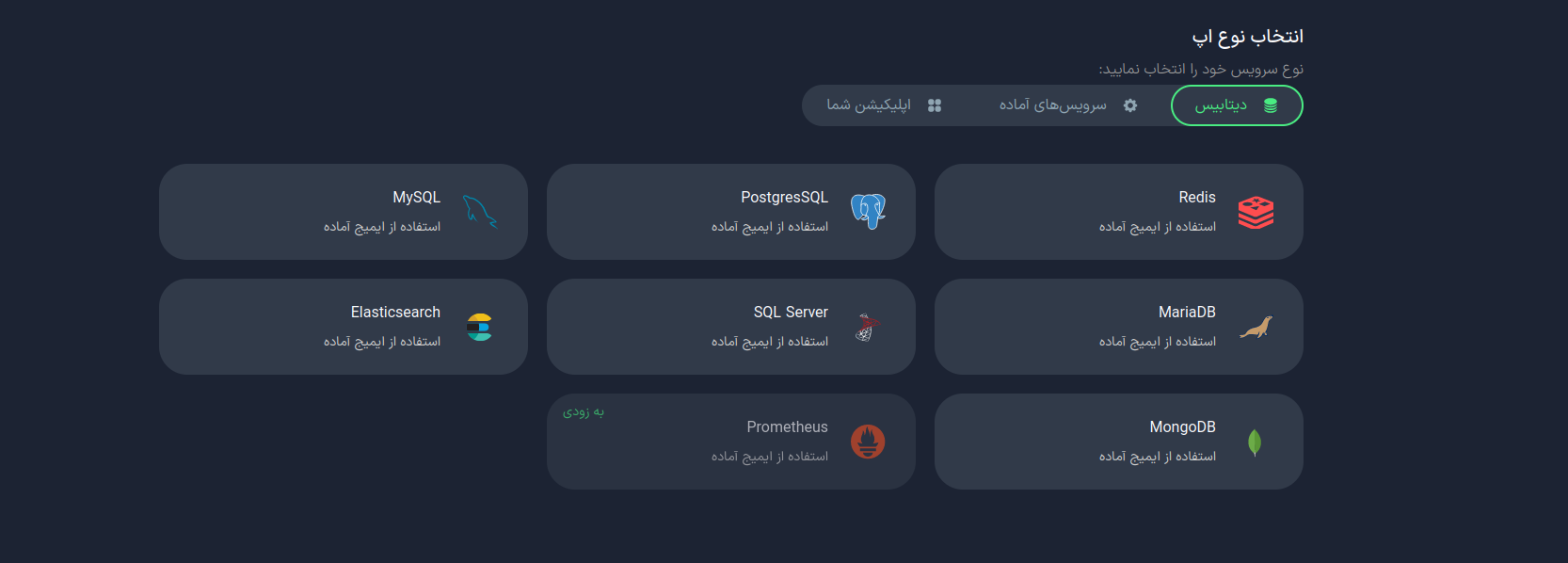
- On your dashboard, click on the Create App option.
- In the Select App page, go to the Database tab.
- Select the Elasticsearch option.
2. Initial Settings
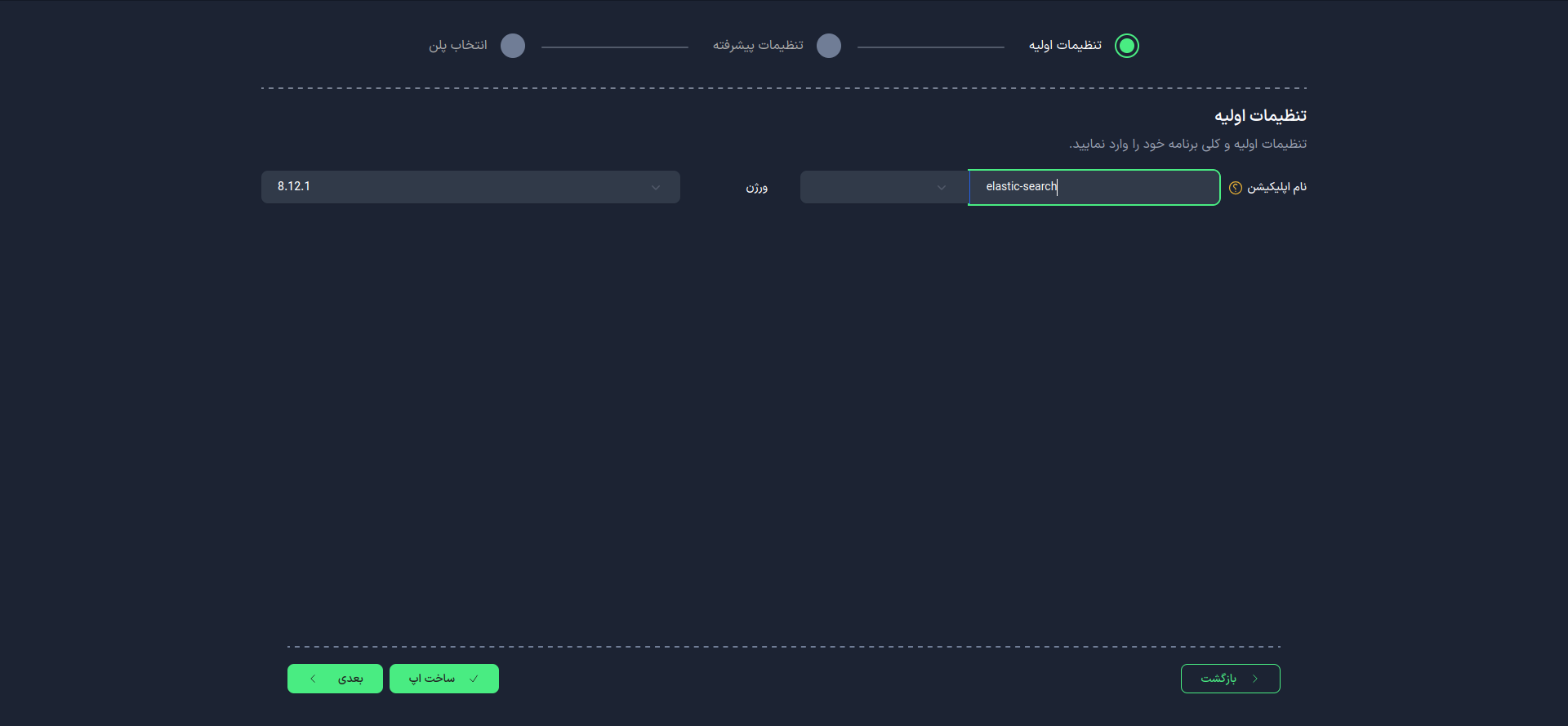
On the initial settings page:
- Enter the Application Name. This name will be used in the database domain and cannot be changed after the application is created.
danger
- Use lowercase letters and only use - as a separator between words.
- Version: Please note that the database version cannot be changed after the application is created.
info
Tested versions of Elasticsearch in the container:
- 7.17.18
- 8.10.2
- 8.12.1
- Click on Create App to automatically generate a username and password.
- For more settings, select the Next option.
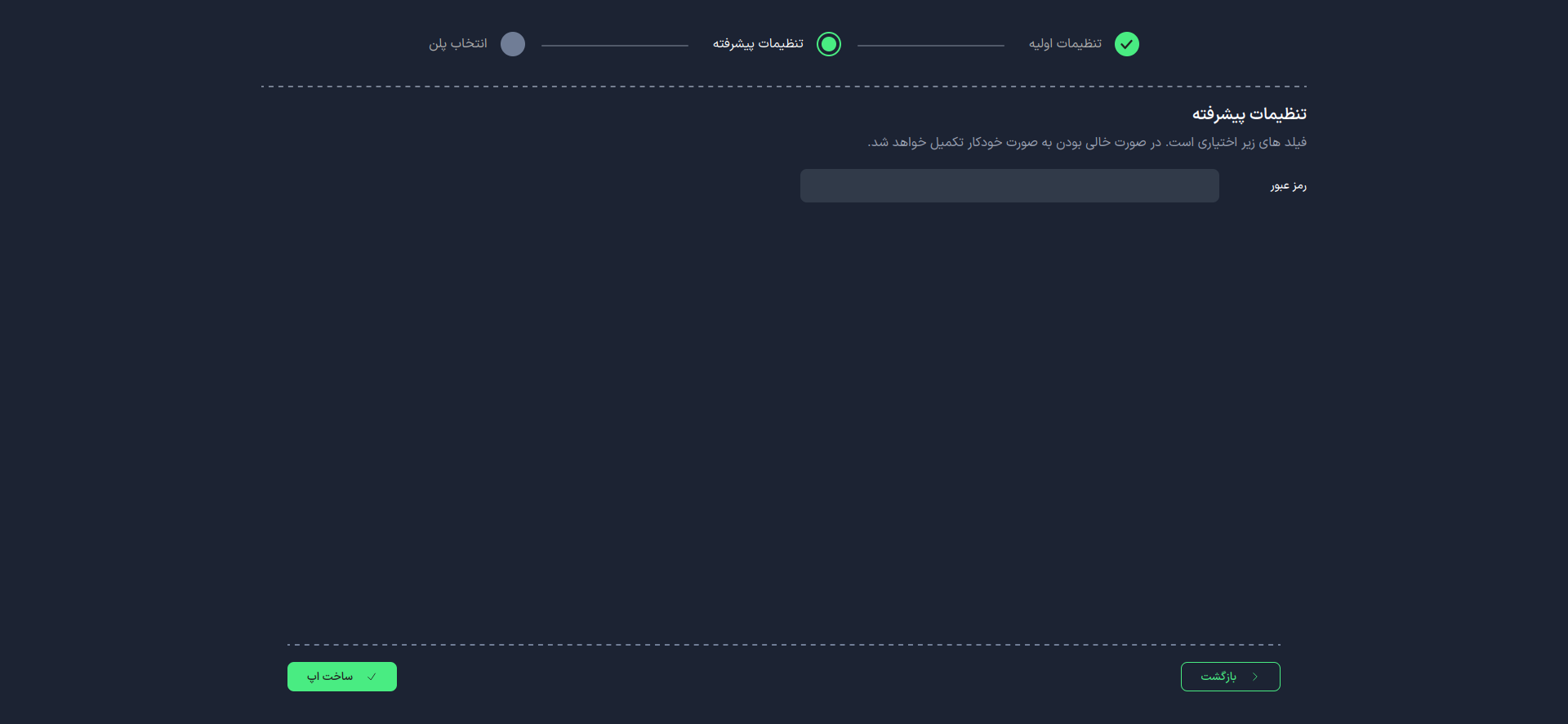
3. Advanced Settings (Optional)
At this stage, you can customize your database password.
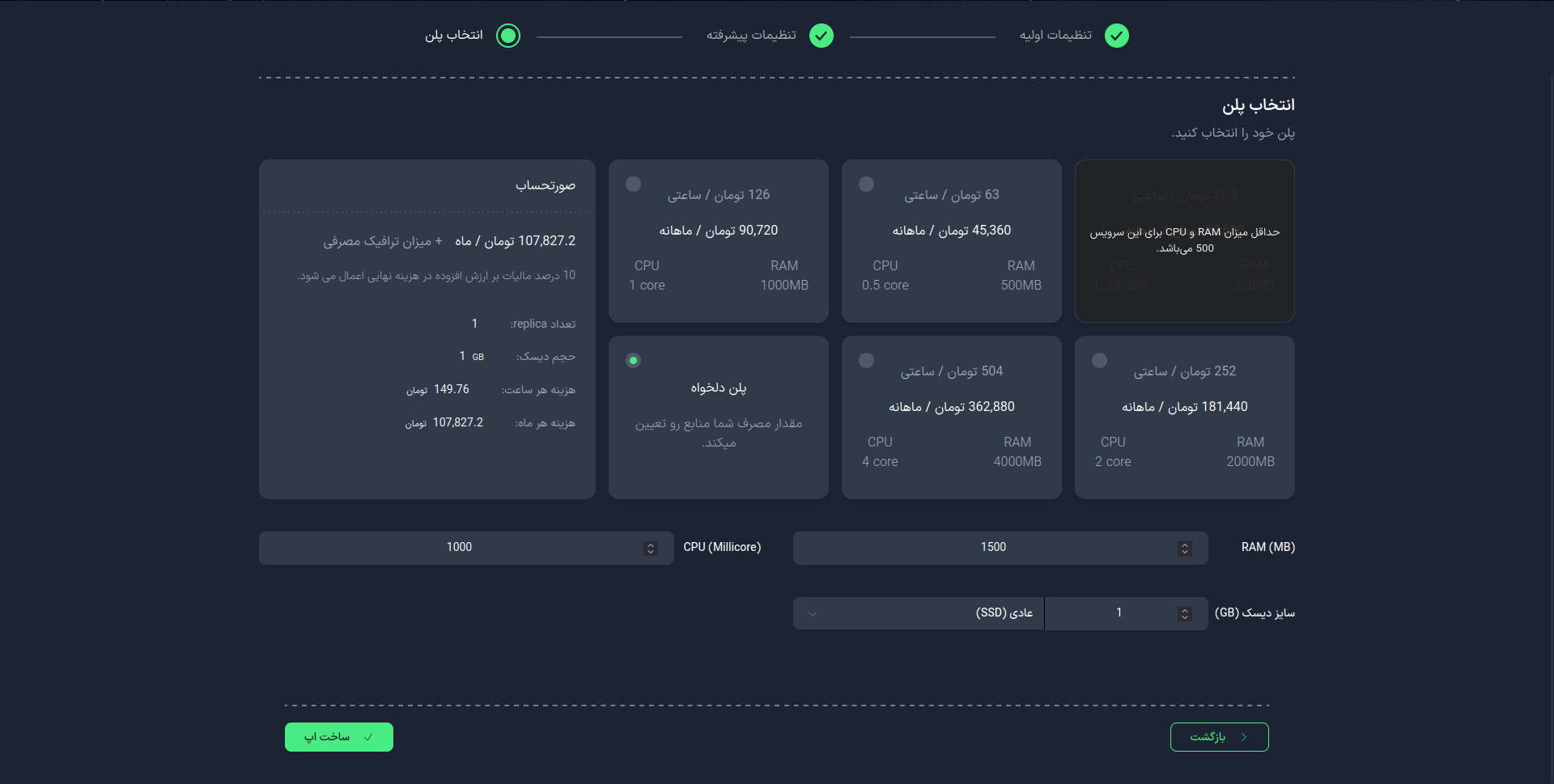
4. Select a Plan
To determine the required hardware resources, choose one of the following methods:
- Use the suggested plans
- Manually configure the desired plan
caution
- The application name and its version cannot be changed after creation.
- Always use a strong password.
- Use advanced options if you need more control over the settings.
- Your selected plan will determine the performance and cost of the Elasticsearch service.